CygNet CAS View Control – Configuring Icon Properties
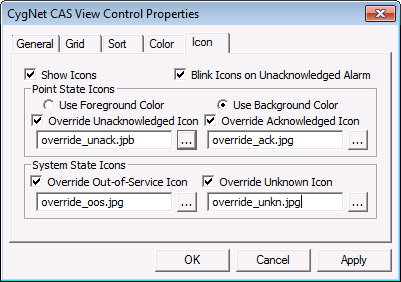
The Icon page allows icons to be displayed on the CAS View Control to visually indicate when alarm conditions are met. Icon objects and options are fully customizable in this page.
|
CAS View Control Icon Properties |
| Option | Description |
|---|---|
|
Show Icons |
Enable option to display icons on the CAS View Control. |
|
Blink Icons on Unacknowledged Alarms |
Enable option to cause icons to blink if an unacknowledged alarm exists. Note: Alarm blinking is available only for points created using the CygNet Enhanced Point Scheme (Point Scheme number 1 - 15). The blinking feature is not available for points created using the default CygNet Standard Point Scheme (Point Scheme number 0). |
| Point State Icons | |
|
Use Foreground Color/ Use Background Color |
Specifies whether the foreground or background of the icon displays the system-defined point state color. |
|
Override Unacknowledged Icon |
Enable to override the system default icon that indicates an unacknowledged alarm. Click … to select a new icon. |
|
Override Acknowledged Icon |
Enable to override the system default icon that indicates an acknowledged alarm. Click … to select a new icon. |
| System State Icons | |
|
Override Out-Of-Service Icon |
Enable to override the system default icon that indicates the system is Out of Service. Click … to select a new icon. |
|
Override Unknown Icon |
Enable to override the system default icon that indicated the system state is unknown. Click … to select a new icon. |
Custom Icon Considerations
Custom icon files can be stored locally or in the Blob service. Custom icons will be displayed as 12 pixels by 12 pixels in size. If using standard sized icons (16 x 16 pixels) they will be scaled down to 12 x 12 if using the default font size. To allow 16 x 16 pixel icons to be displayed at full size, the control font size must be at least 10 points or greater. The colors will be replaced at runtime to indicate unacknowledged and acknowledged alarms. All magenta pixels (with a RGB value of 255, 0, 255) will be replaced with the alarm foreground or background color (as specified by the user). All blue pixels (with a RGB value of 0, 0, 255) will be replaced with the control’s background color, thereby making them appear transparent.


